
3. Formatting: Headings
Contents: The importance of formatting headings; guidance on implementation.
Why are headings important?
Headings provide an overview of the content that follows. They help to structure the content and aid navigation.
In an ILIAS course room, too, care must be taken to ensure that headings are formatted as such so that they are read out correctly by assistive technologies, such as screen readers.
How do you format headings?
To format headings correctly, there are a few things to bear in mind, though these are not difficult to implement. For example, please note that:
- Text that is not a heading should not be marked as such – not even for stylistic reasons.
- Headings should be marked as such and not merely set in bold, highlighted in colour or underlined.
Headings should always be implemented and formatted as actual headings, and should not be highlighted (solely) by using bold, large or coloured text. Text that is not intended to be a heading must not be marked as a heading for design reasons.
Procedure: Formatting headings
To mark up a heading as such:
- Click on the "Design page" button (see Fig. 1).
- Click on the plus sign and select "Insert text" (see Fig. 2).
- You can now type into the text box.
 Fig. 1: Designing a page in an ILIAS course room.
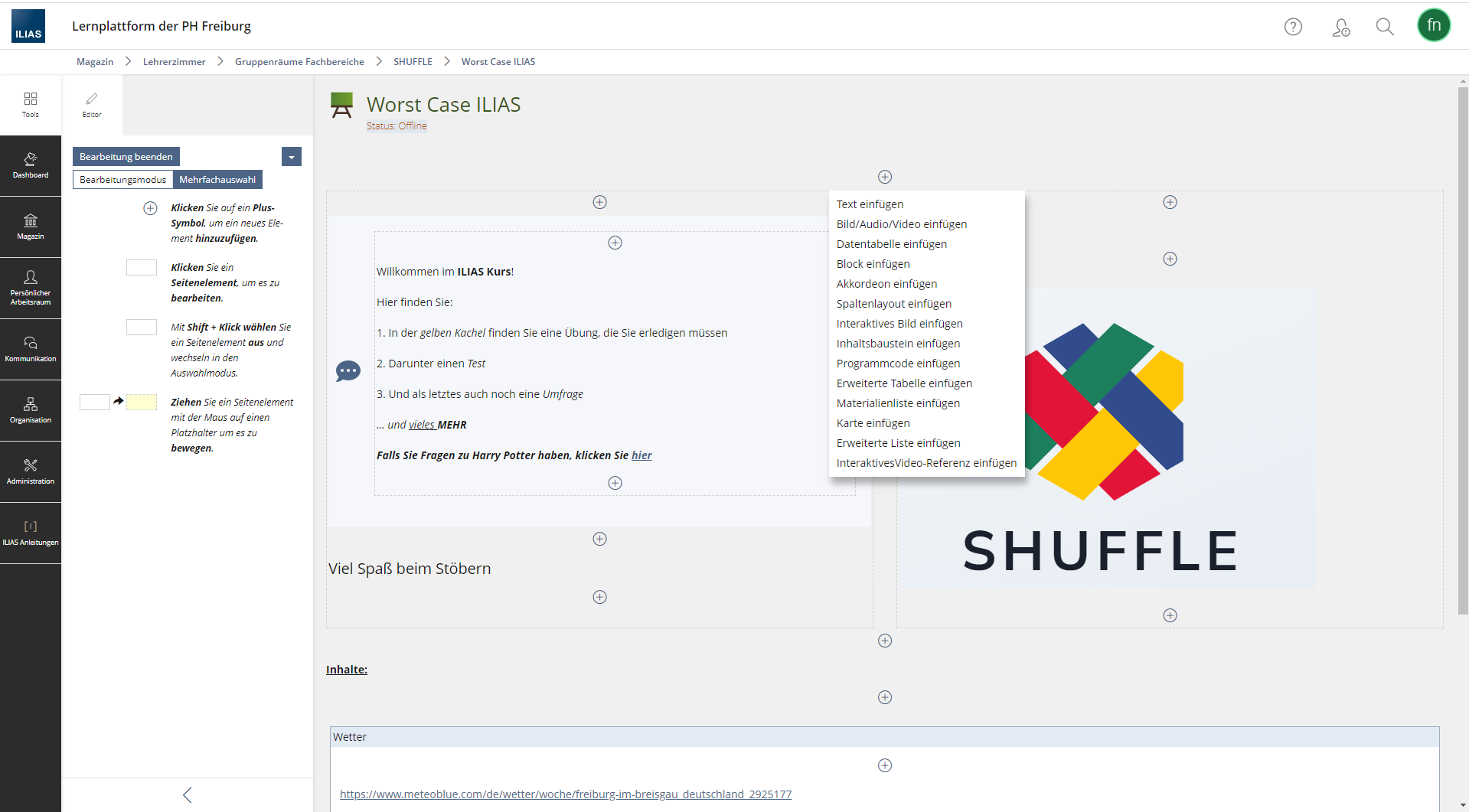 Fig. 2: Adding text in the ILIAS course room.
The text editor will also open on the left-hand side (see Fig. 3). Under "Paragraph Format", you can select the appropriate layout and, for headings, the relevant heading level. Make sure that "Heading Level 1" appears only once and that no heading levels are skipped.
If you have already written some text, you must first select it with the mouse and then choose the formatting so that it is applied.
 Fig. 3: The ILIAS course room’s text editor.
No comments to display
No comments to display