
7. Alternative texts
Contents: The relevance of using alternative texts; guidance on implementation.
Why are alternative texts important?
Images cannot be described by assistive technologies. It is therefore essential to provide alternative text for images, graphics and other visual elements, so that readers with visual impairments can understand what the image depicts.
How do you add alternative text?
It is also possible to add alternative text for images on ILIAS.
First, you need to add an image to the page. To do this, click on the "Design page" button (see Fig. 1). You will be taken to edit mode, where you can click on the plus sign and select "Insert image/audio/video" (see Fig. 2).
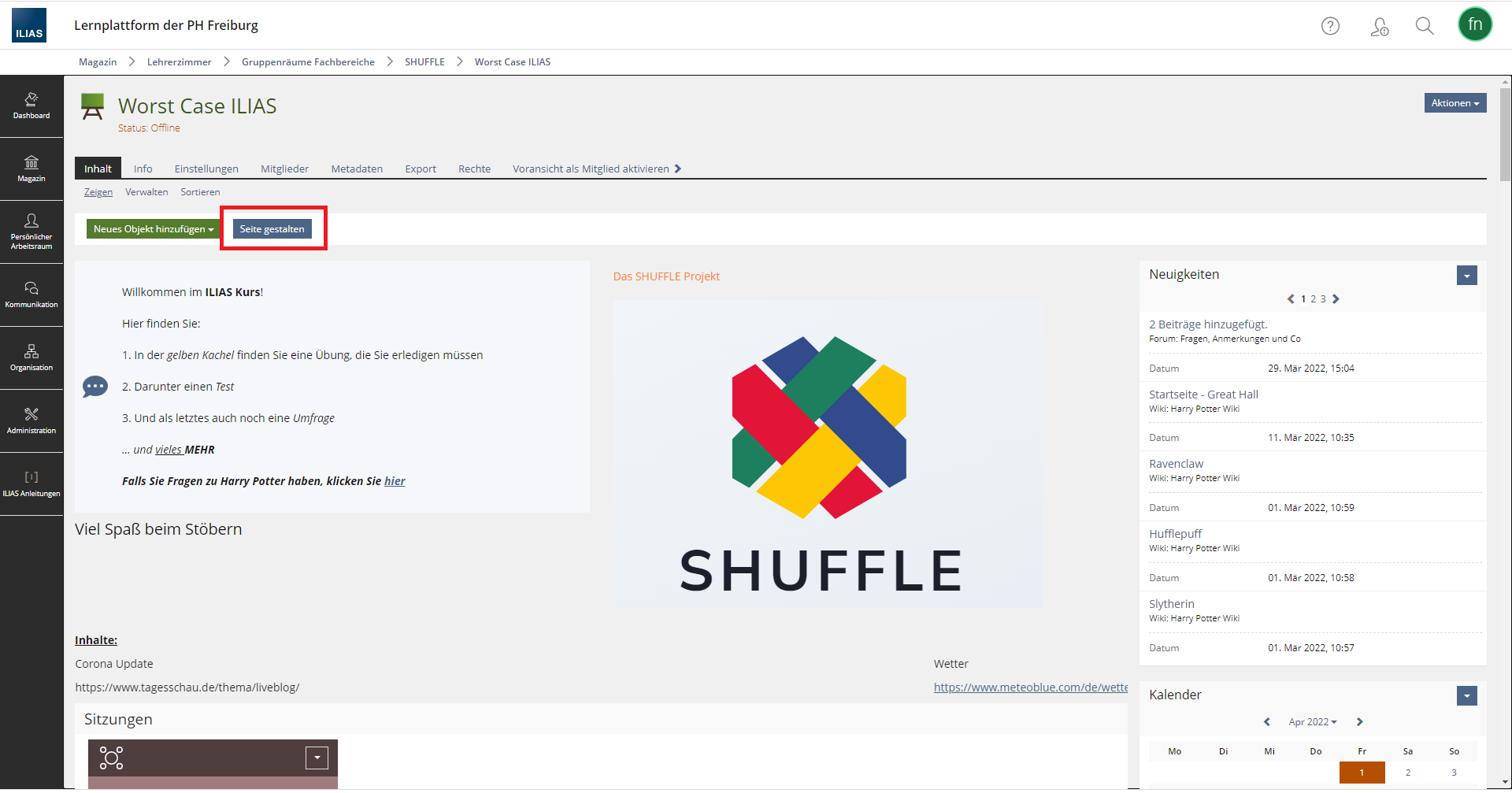
Fig. 1: Designing a page in an ILIAS course room.
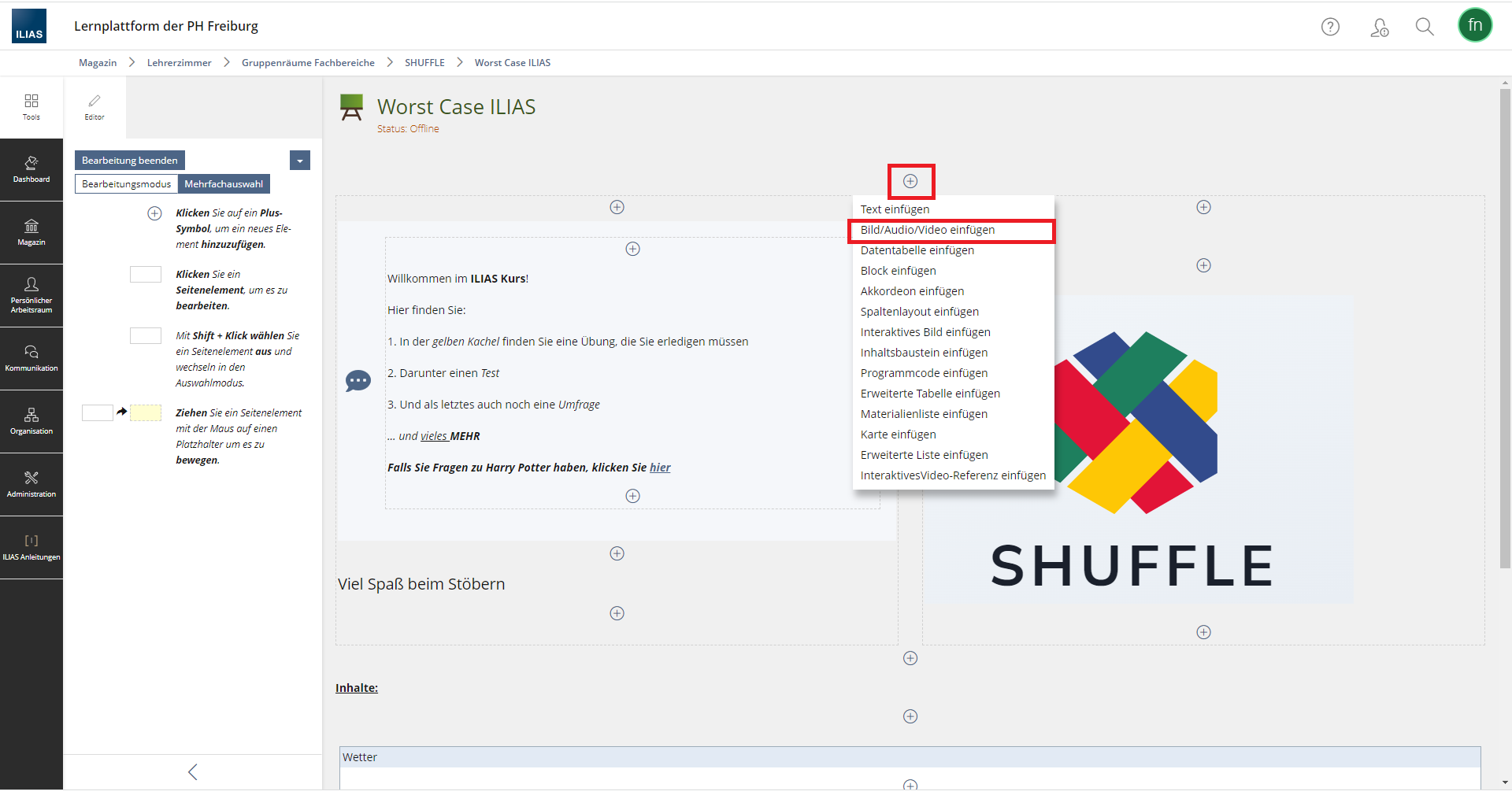 Fig. 2: Adding images to the ILIAS course room.
Click on it to open the media upload window. Use the "Select file" button to upload the relevant image file and click "Insert" to add it to the page (see Fig. 3). The image will now be displayed on the ILIAS page.
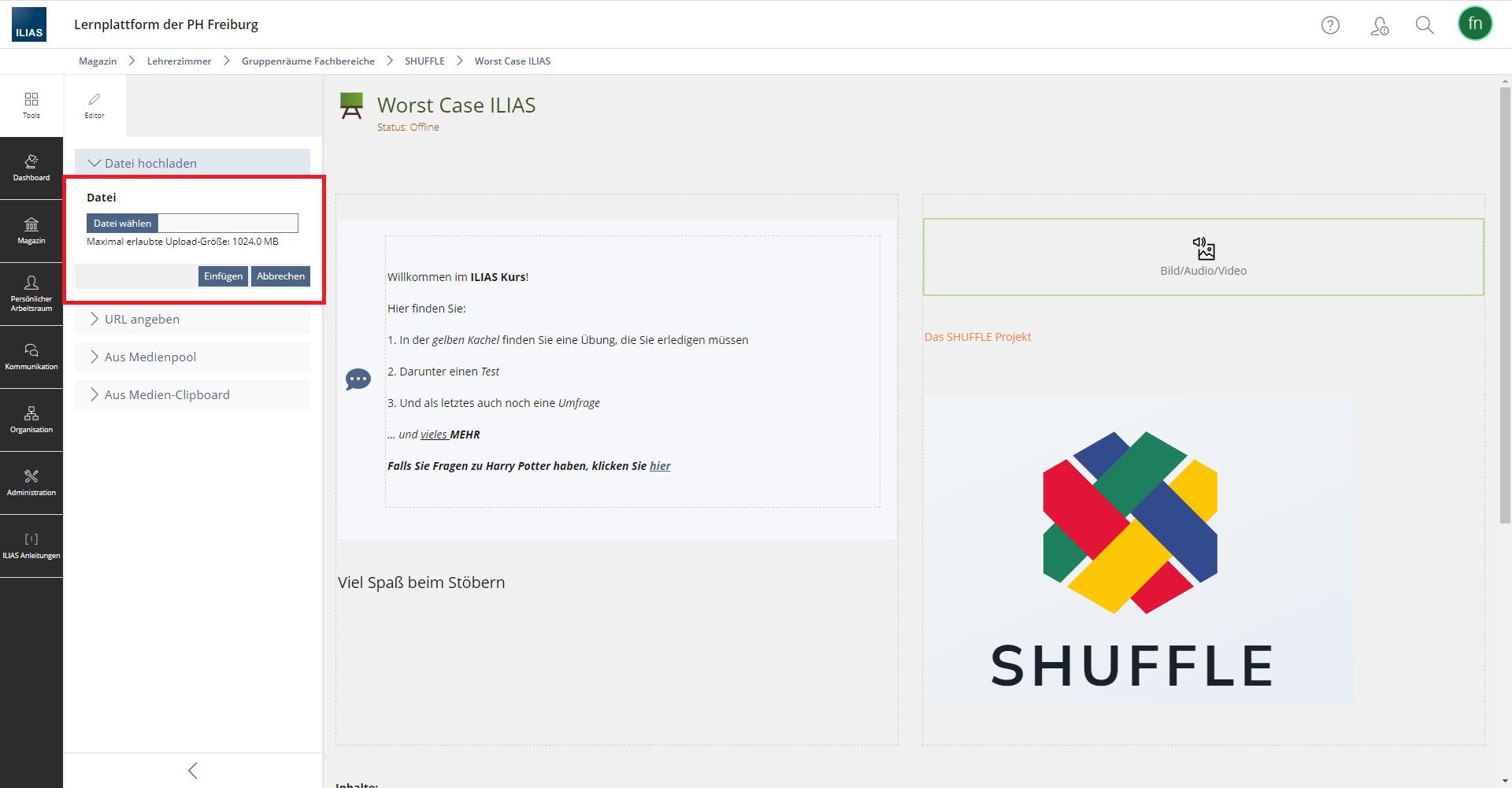
Fig. 3: Inserting an image.
Now click on the image and the image menu will open on the left-hand side. There you can select the size and full-screen mode. You can also add a caption and alternative text (see Fig. 4).
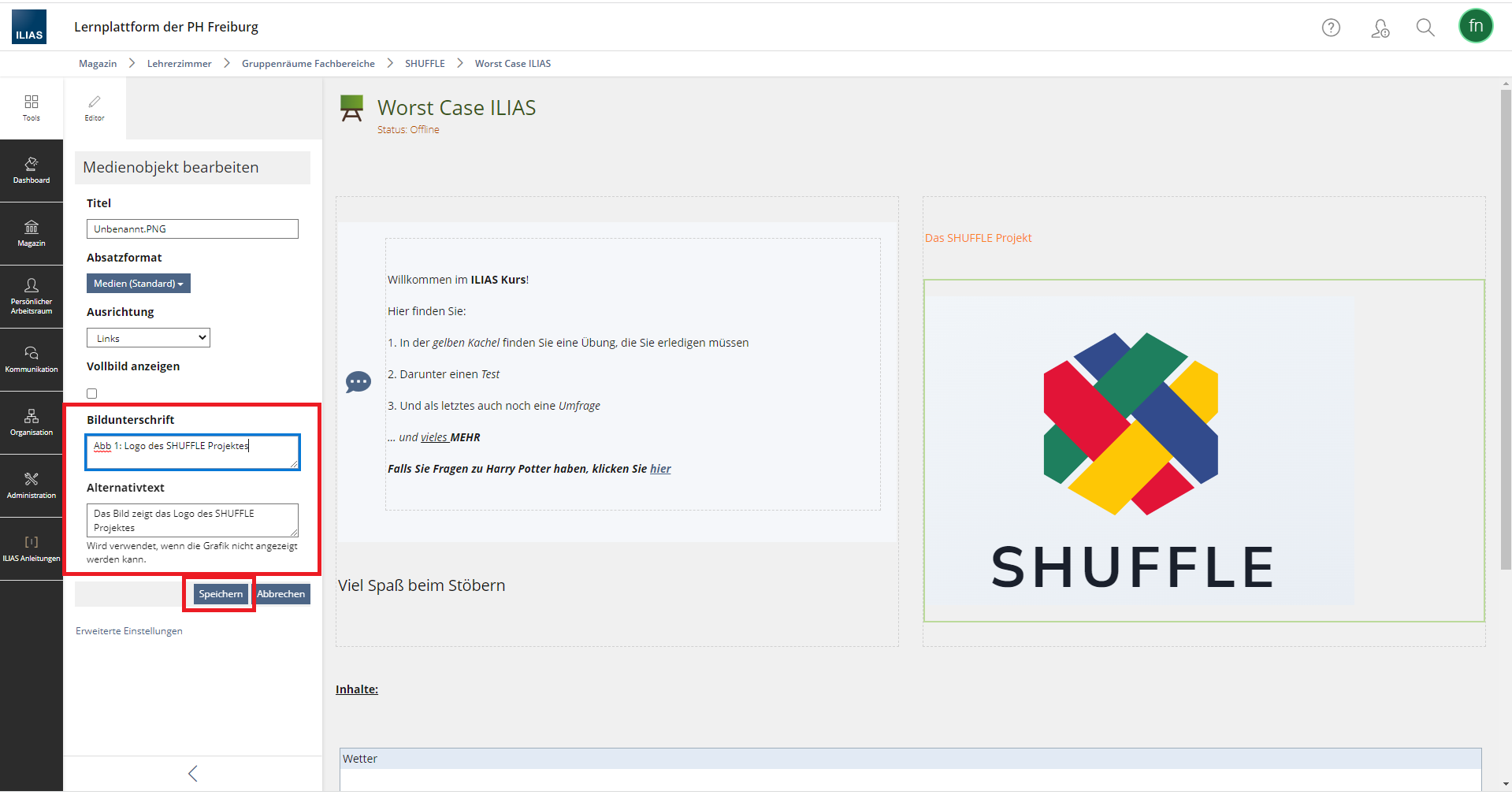
Fig. 4: Editing the media object.
Fill in the fields and click on "Save". The image now has alternative text.
It is not only on the home page of an ILIAS course room that you can add an image and alternative text. For example, an image can also be inserted via the text editor in the forum.
To insert an image with alternative text here, click on the image icon in the text editor (see Fig. 5). The upload form will open, where you can also specify alternative text and an image title (see Fig. 6).
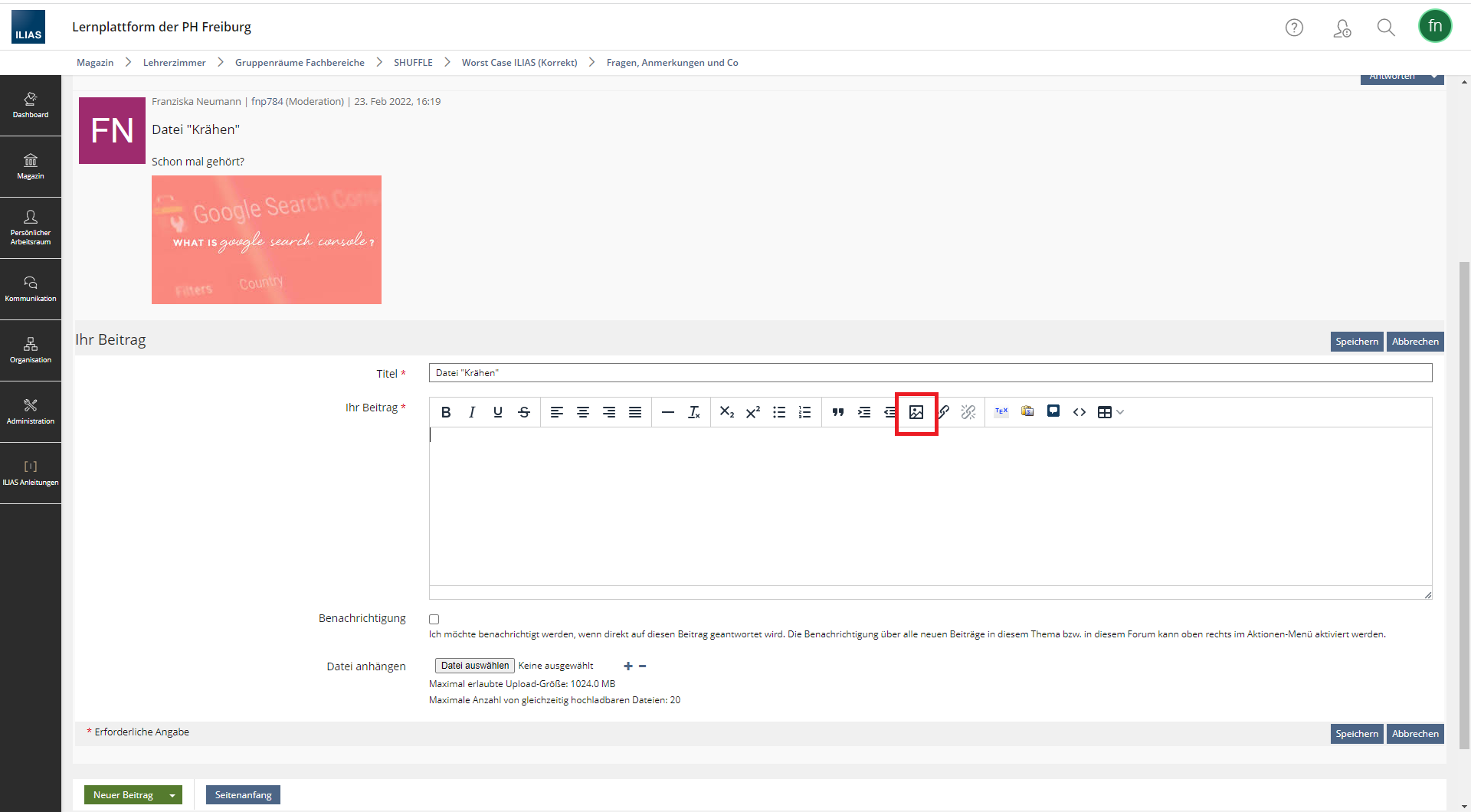 Fig. 5: Text editor, here on the forum.
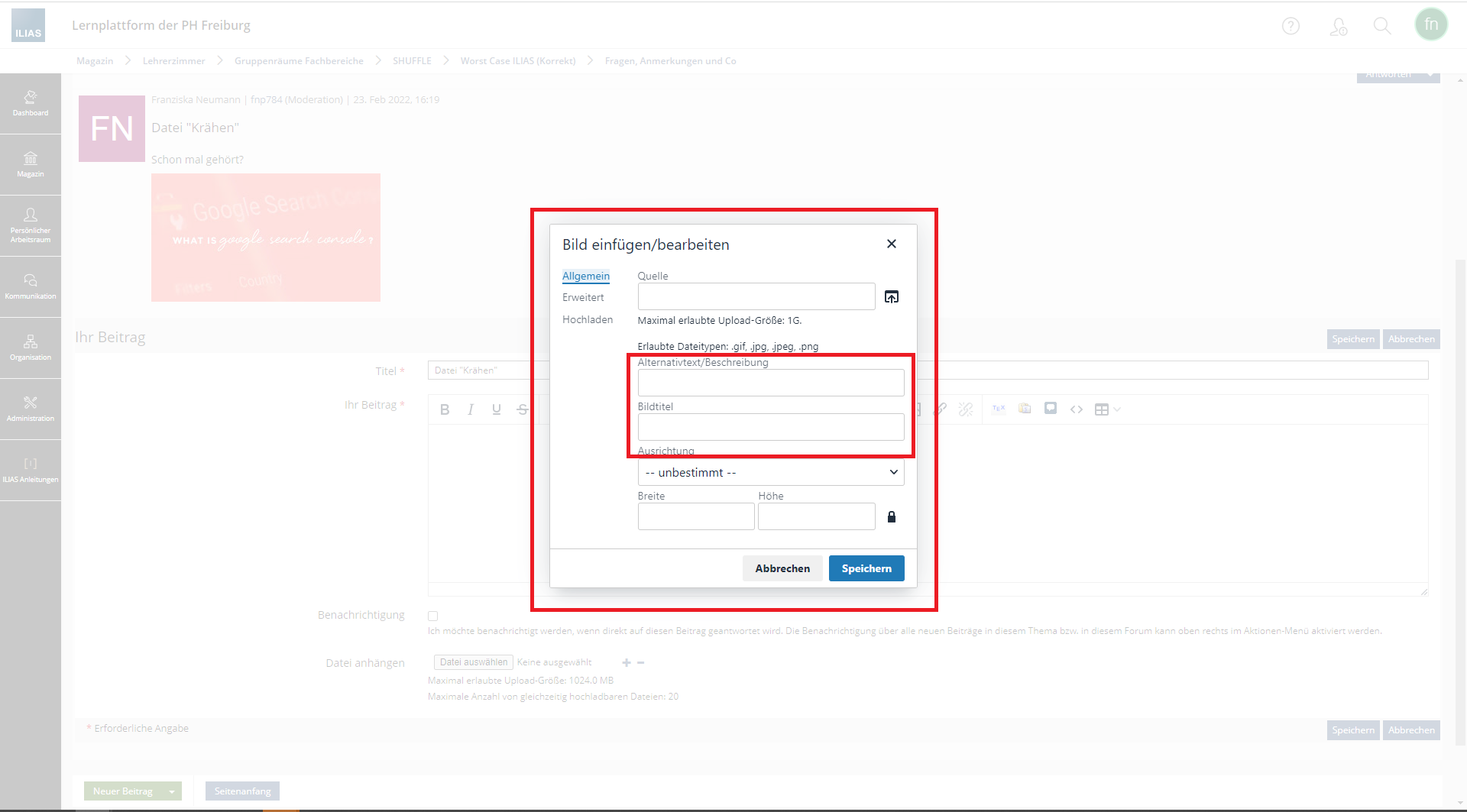 Fig. 6: Image upload form.
Text-only graphics (images containing only text) should be avoided, except in logos, as the text cannot be adapted to users’ needs and becomes pixelated when the image is enlarged.
No comments to display
No comments to display